Guide · Intermediate · ⏱ ~8 min read
This guide walks through the complete process of creating a Cannabis Related Business (CRB) record via the Green Check Access API. The flow covers authentication, fetching the POS credentials schema, collecting POS details, submitting the creation request, and handling all response outcomes.
- The six-step CRB creation process end to end
- How to use the POS credentials schema to drive dynamic UI forms
- What each API response code means and how to handle it
- Authenticate — Obtain an access token using your service provider credentials
- Retrieve POS credentials schema — Fetch the schema to understand required fields per POS provider
- Present POS selection — Let the user choose their POS provider
- Collect POS details — Gather credentials and configuration for the selected provider
- Submit CRB creation request — Send the complete CRB payload to the API
- Handle response outcomes — Process success or manage errors appropriately
The diagram below shows the complete CRB creation flow, including all decision points and response paths.
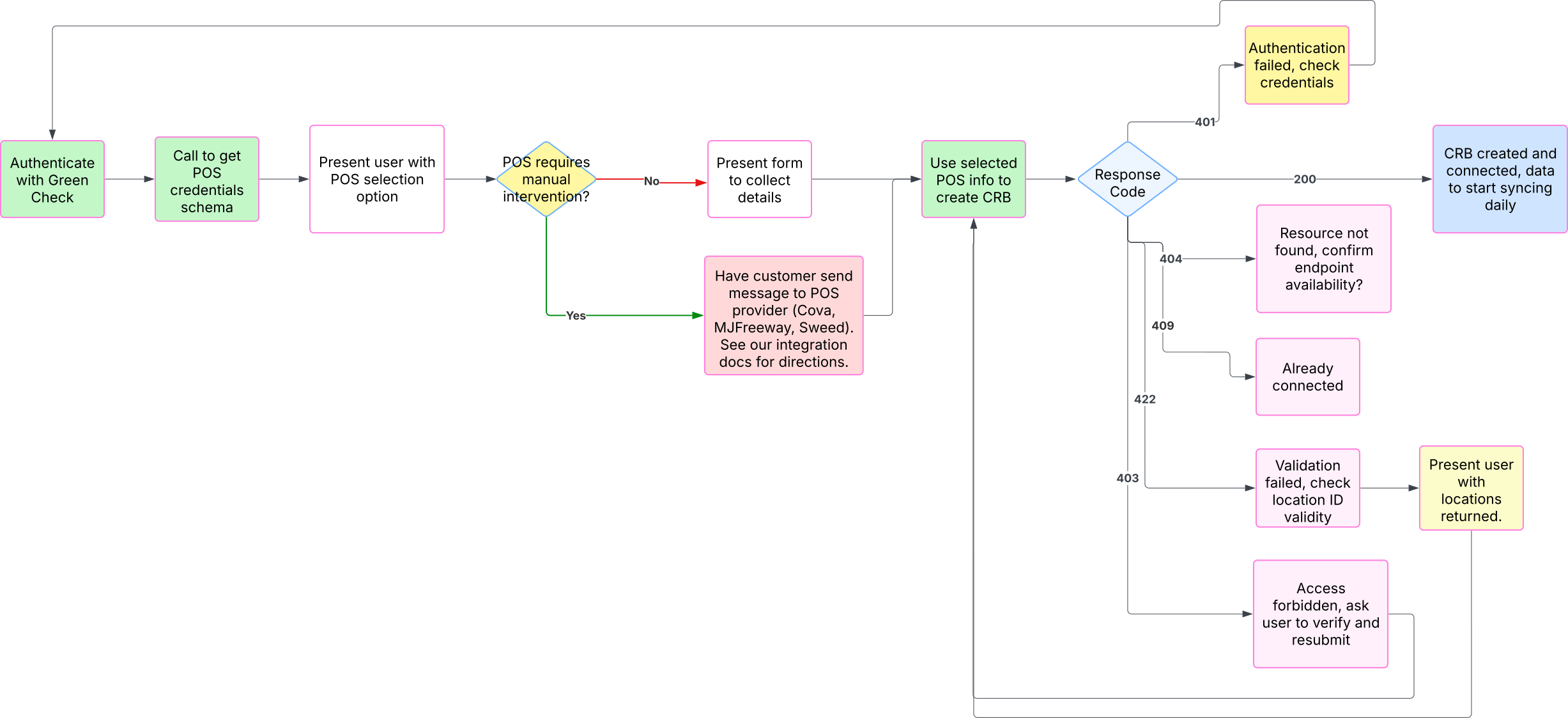
💡 Tip — Full-size view
Click the diagram to open the full-size SVG in a new tab. Use your browser's zoom controls to inspect individual steps.
Obtain a valid access token from the Green Check Access API. This token is required for all subsequent requests.
POST /auth/token{
"client_id": "your-client-id",
"client_secret": "your-client-secret",
"grant_type": "client_credentials"
}- Store the token securely for the duration of your session
- Pass it as
Authorization: Bearer <access_token>in every request header - Check
expires_atand re-authenticate before the token expires
⚠️ Warning — Token expiry
Tokens have a finite lifetime. Build refresh logic into your integration from the start to avoid unexpected
401errors. See the Integration overview for the full auth response schema.
Fetch the POS credentials schema for your service provider. This schema defines the required fields and format for each supported POS provider.
GET /service-providers/{sp_id}/pos-credentials-schema- The response lists all supported providers (Cova, MJFreeway, Seed, GrowFlow, etc.) and their required fields
- Use the schema to determine which fields are required vs. optional per provider
- Drive your UI forms dynamically from this response — do not hardcode provider fields
ℹ️ Schema-driven forms
The POS credentials schema can change as new integrations are added or updated. Fetch it at runtime rather than caching it statically to ensure your forms always match the current requirements.
Display the list of available POS providers from the schema response to the user and allow them to select one. The selection determines which credential fields you'll collect in the next step.
Based on the selected POS provider, gather the required credentials and configuration from the user.
| Provider type | Required fields |
|---|---|
| Cova, MJFreeway, Seed | API keys and account identifiers (as defined by the schema) |
| Other providers | Provider-specific credentials as returned in the schema |
💡 Tip — Validate before submitting
Check all inputs against the schema constraints on the client side before sending the creation request. Early validation surfaces formatting issues (wrong field lengths, missing required fields) before they result in a
422from the API.
Send a POST request to create the CRB with the collected POS credentials and business information.
POST /service-providers/{sp_id}/crbs{
"org": {
"name": "Example Dispensary",
"state": "CO",
"business_type": "retail"
},
"pos_info": {
"pos_type": "GrowFlow",
"pos_credentials": {
"client_id_name": "mygrowflowclientid"
}
},
"users": [],
"options": {
"onboarding_required": false
}
}| Field | Description |
|---|---|
org | Basic business information — name, state, and business type |
pos_info.pos_type | The POS provider selected in Step 3 |
pos_info.pos_credentials | Credentials collected in Step 4, shaped to match the schema |
users | Optional — include user objects to send an onboarding invite email |
options.onboarding_required | Set to true to require the CRB to complete a due diligence application |
The API returns different responses based on request validation. Handle each case appropriately.
On success (200): The CRB has been created and will begin syncing data on the nightly schedule. Display a confirmation to the user that includes the new crb_id.
On error: See the error reference table below.
| Status | Meaning | Common cause & fix |
|---|---|---|
400 Bad Request | Validation failed | Check that all required fields are present and formatted correctly — location ID format, credential field names, required org fields |
401 Unauthorized | Invalid or expired token | Re-authenticate with POST /auth/token and retry |
403 Forbidden | Manual intervention required | User information is incomplete or POS credentials were entered incorrectly — confirm location ID matches the dispensary location and credentials are accurate |
404 Not Found | POS provider unavailable | The selected POS type is not available for the given location — check credential location ID against provider availability |
412 Precondition Failed | Already connected | A CRB already exists with the same POS credentials — check for an existing record before submitting to prevent duplicate connections |
- Choosing your CRB onboarding path — Compare all three onboarding methods and choose the right fit
- Retrieving CRB onboarding templates — Tutorial for pulling application data and documents after a CRB completes onboarding
- Integration overview — Authentication, core workflows, and the full integration lifecycle
- API reference — Full schema and endpoint documentation