Guide · Intermediate · ⏱ ~5 min read
This guide walks through the process of creating a Cannabis Related Business (CRB) record via the Green Check Access API by supplying user information directly. Instead of connecting a POS provider, you provide at least one user with the creation request, and that user receives an invitation to the new CRB. The flow covers authentication, collecting business and user information, submitting the creation request, and handling all response outcomes.
- The CRB creation process with invited users end to end
- The business and user fields required in the creation payload
- What each API response code means and how to handle it
- Authenticate — Obtain an access token using your service provider credentials
- Collect business and user information — Gather the org details and at least one user to invite
- Submit CRB creation request — Send the complete CRB payload to the API
- Handle response outcomes — Process success or manage errors appropriately
The diagram below shows the complete CRB creation flow with invited users, including all response paths.
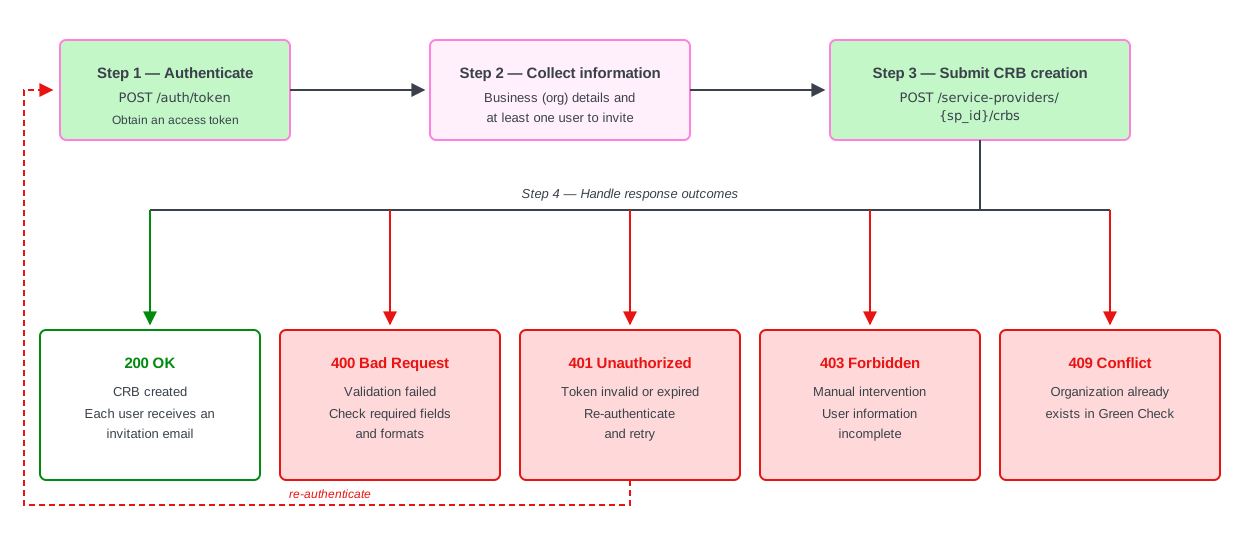
💡 Tip — Full-size view
Click the diagram to open the full-size SVG in a new tab. Use your browser's zoom controls to inspect individual steps.
Obtain a valid access token from the Green Check Access API. This token is required for all subsequent requests.
POST /auth/token{
"client_id": "your-client-id",
"client_secret": "your-client-secret",
"grant_type": "client_credentials"
}- Store the token securely for the duration of your session
- Pass it as
Authorization: Bearer <access_token>in every request header - Check
expires_atand re-authenticate before the token expires
⚠️ Warning — Token expiry
Tokens expire 3600 seconds (1 hour) after they are issued. Build refresh logic into your integration from the start to avoid unexpected
401errors. See the Integration overview for the full auth response schema.
Gather the business details for the org object and the information for each user you want to invite. At least one user is required.
| Field | Description |
|---|---|
firstName | The user's first name |
lastName | The user's last name |
email | The email address the invitation is sent to |
phone | The user's phone number |
💡 Tip — Validate before submitting
Check all inputs on the client side before sending the creation request. Early validation surfaces formatting issues (missing required fields, malformed email addresses) before they result in an error from the API.
Send a POST request to create the CRB with the business information and the users to invite.
POST /service-providers/{sp_id}/crbs{
"org": {
"monthlyCustomers": 1500,
"monthlySales": 250000,
"dba": "Example Dispensary",
"entityType": "sole",
"ptEmployees": 5,
"ftEmployees": 10,
"established_date": "2020-01-15",
"website": "https://www.example-dispensary.com",
"phone_number": "1234567890",
"ein": "12-3456789",
"mailing_postal_code": "80202",
"mailing_state": "CO",
"mailing_city": "Denver",
"mailing_street_address": "123 Main St",
"country": "United States",
"postal_code": "80202",
"city": "Denver",
"street_address_2": "Suite 100",
"street_address": "123 Main St",
"primary_contact_email": "owner@example-dispensary.com",
"business_type": "retail",
"template_id": "a27fa55c-875a-4557-97f0-1f088c08b1ae",
"timezone": "America/Denver",
"state": "CO",
"name": "Example Dispensary"
},
"users": [
{
"firstName": "Jane",
"lastName": "Doe",
"email": "jane.doe@example-dispensary.com",
"phone": "1234567890"
}
],
"options": {
"onboarding_required": true
}
}| Field | Description |
|---|---|
org | Business information — name, state, business type, contact details, and the onboarding template_id |
users | At least one user object — each invited user receives an onboarding invite email |
options.onboarding_required | Set to true to require the CRB to complete a due diligence application |
ℹ️ More optional fields
The example above shows a subset of the available
orgfields. See the Create CRB API reference for the full list of optional business fields.
The API returns different responses based on request validation. Handle each case appropriately.
On success (200): The CRB has been created and each supplied user receives an invitation email. Display a confirmation to the user that includes the new crb_id.
On error: See the error reference table below.
| Status | Meaning | Common cause & fix |
|---|---|---|
400 Bad Request | Validation failed | Check that all required fields are present and formatted correctly — required org fields, user field names, and email formats |
401 Unauthorized | Invalid or expired token | Re-authenticate with POST /auth/token and retry |
403 Forbidden | Manual intervention required | User information is incomplete — confirm each user includes a first name, last name, email, and phone number |
409 Conflict | Organization already exists | An organization with the same name already exists in Green Check — check for an existing record before submitting to prevent duplicates |
The 409 Conflict response lists the conflicting organization name(s) in the data array:
{
  "message": "Conflict",
  "details": "The following organization(s) already exist in GreenCheck",
  "data": [
    "Example Dispensary"
  ]
}- Choosing your CRB onboarding path — Compare all three onboarding methods and choose the right fit
- Retrieving CRB onboarding templates — Tutorial for pulling application data and documents after a CRB completes onboarding
- Integration overview — Authentication, core workflows, and the full integration lifecycle
- API reference — Full schema and endpoint documentation